NutriSpy

Your sleep is already measured — it just never reaches your diary

Almost every ring, watch and nutrition app can hand its data to Apple Health or Health Connect, and NutriSpy reads it from there. The switch that starts it sits in the other app.
Why there is a station in between

Your phone has a hub

Apple Health on iPhone, Health Connect on Android. It belongs to no single manufacturer: every app may put data in, and every app may take data out — with your permission.

The other app has to share

NutriSpy cannot ask Oura or Garmin Connect for anything. It only ever sees what their app has already written to the hub. This is the step almost everybody misses.

And NutriSpy has to read

In NutriSpy under Settings → Data sync. Reading costs nothing — your diary stays free whether you type it or your watch fills it.

Where you check that it worked

On iPhone

Health → Summary → your profile picture → under Privacy tap Apps, then pick the app. An app shows up here only once it has asked for access itself — so if yours is missing, the switch is still off inside it.

On Android

Health Connect → Permissions and data → App permissions → pick the app → Allow all, or one data type at a time. On Android 14 and newer, Health Connect is part of the system settings.

This is the half that stays true when a manufacturer rearranges its menus. If a path further down no longer matches what you see, come back here.

Your app, step by step

Oura

On iPhone
Oura → menu, top left → Settings → under Data sharing → Apple Health → turn on Connect to Health.
On Android
Oura → menu, top left → Settings → under Data sharing → Health Connect. It offers to install Health Connect if you do not have it yet.

Your nights arrive with their sleep stages, and your steps too. The Readiness score stays inside Oura — no hub has a field for it. Oura asks for an active membership.

Garmin Connect

On iPhone
Garmin Connect → More → Settings, then look for Apple Health. Depending on the app version it sits under Connected apps.
On Android
Garmin Connect → Settings → Health Connect, in some versions under Connected apps. Sharing runs one way only: Garmin writes, and reads nothing back.

Sleep with its stages and your steps come across. Body Battery, training load and HRV status stay inside Garmin — Garmin holds those back on purpose.

Whoop

On iPhone
Whoop → menu, bottom right → Integrations → Apple Health → Connect, then turn the categories on.
On Android
Whoop → More → Account & Settings → Integrations → Health Connect → Set up.

Your nights arrive, but without their stages, and Whoop passes on no step count at all — for steps NutriSpy falls back on your phone.

Google Health

On iPhone
Google Health → Connections, top left → Apps and services → under Add connections → Apple Health → Get started → Agree, then turn the categories on.
On Android
Google Health → Connections, top left → Partner apps → Set up.

This is the app that used to be Fitbit. It only learned to write to Apple Health in August 2026, so update first if you cannot find the entry. It is also the one wearable app that hands your meals on as well as your nights.

Samsung Health

On iPhone
Samsung Health does not write to Apple Health. Its iPhone app is a companion for older Galaxy watches and only reads your step count out of Apple Health.
On Android
Samsung Health → Settings → Health Connect → Get started → choose the data → Allow. Samsung also wants its own account sync switched on, further up under Settings.

Nights with their stages, steps and even your meals come across. One catch of Samsung's own making: calories and distance only travel from a recorded workout, never from the daily activity tracker. Steps are the exception and always arrive.

Polar Flow

On iPhone
Polar Flow → More, bottom right → General settings → Apple Health, then turn the categories on.
On Android
Polar Flow → General settings → turn on Health Connect and choose the data.

Worth knowing before you wonder: Health Connect receives your sleep stages, Apple Health only the duration and the times you fell asleep and woke up.

Withings

On iPhone
Withings → Profile → Settings, the gear top right → Export health data to Apple Health → Next, then allow the data types.
On Android
Withings → Profile → Settings, the gear top right → Export health data to Health Connect → Next, then allow the data types.

On iPhone Withings does not sync on its own — Withings says so itself. Open the Withings app, open Health, come back to Withings and pull down to refresh. Without that ritual your data simply stays old.

Cronometer

On iPhone
Cronometer → More → Connect Apps & Devices → Apple Health → Connect Apple Health, then turn the categories on.
On Android
Cronometer → More → Connect Apps & Devices → Health Connect → Sync with Health Connect.

Android carries the whole nutrition record over; Apple Health takes only a handful of nutrients, so what reaches NutriSpy on an iPhone is thinner than what you see in Cronometer.

MyFitnessPal

On iPhone
MyFitnessPal → More → Settings → Sharing & Privacy → HealthKit Sharing, then turn the categories on.
On Android
MyFitnessPal → Menu → Apps & Devices → search for Health Connect → Connect, then allow every permission — the list scrolls.

Meals arrive as a summary per meal, not as single foods, and only from the day you connect. What you logged before that stays behind.

Yazio

On iPhone
Yazio → Profile → under Automatic tracking → Apple Health → Connect, then allow the permissions.
On Android
Yazio → Profile → Automatic tracking → Health Connect → Connect → Allow all.

Yazio connects to one other app at a time, so if you already pointed it somewhere else, that connection goes first.

Sleep Cycle

On iPhone
Sleep Cycle → Profile → More → Apple Health → Connect. The app also asks by itself once you have tracked a couple of weeks.
On Android
Sleep Cycle names Health Connect as supported but documents no path for it; look under Profile → More.

Sleep Cycle hands your nights on but takes none back, so a night it missed cannot be filled in from the hub.

A few apps work the other way round and are switched on from the hub instead — if you cannot find anything to share in your app, look for its name in the lists above.

Frequently asked questions

NutriSpy says it found nothing. What now?

Then the hub is empty for those days, and the cause is almost always one switch in the other app rather than anything in NutriSpy. Find your app above, turn sharing on, and check on the platform page that it now appears in the list. Give it a day: most apps only hand over a night once they have finished working it out.

Does this need Premium?

No. Reading your data from Apple Health or Health Connect is free, and so is the diary it fills. Premium is for the interpretation — the explanations and recommendations NutriSpy builds on top.

My step count differs between the apps. Why?

Because every manufacturer counts differently, and Withings and Samsung Health both say so in their own help. NutriSpy takes the larger of the two numbers it can see, so a walk you logged by hand is never lost to a smaller daily total.

Can I connect more than one app?

Yes, and it is worth it when one app knows your nights and another your meals. If two of them describe the same night, NutriSpy recognises it as one night instead of counting it twice.

Where does my data go?

To your diary, and nowhere else. NutriSpy reads only the data types you allowed, never passes your health data to advertising platforms or data brokers, and you can switch any of it off again at any time — in NutriSpy, or on the platform page above.

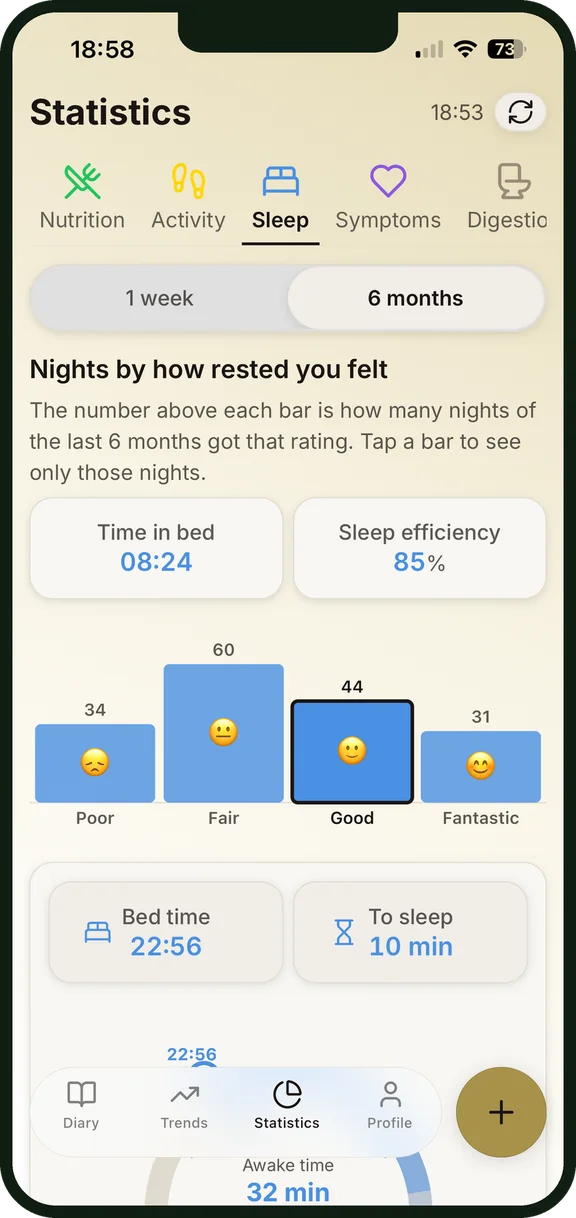
Sleep overview in NutriSpy

And then your nights are simply there

One less thing to type, every morning.

More about NutriSpy: Home · IBS & intolerance · Histamine food diary · Acid reflux food diary · Food diary for Hashimoto · Weight loss · Building muscle · Fiber tracker · Printable template · All topics

Menu names change with app versions and languages. If a path no longer matches what you see on your phone, the platform section above is the reliable place to look.